

Run on Google Cloud TPU
From a Google account with no Cloud setup to a running model, then a deleted chip. Each step shows the Google Cloud console and the matching command. Commands are for Linux and macOS. On Windows, run them in the Google Cloud SDK Shell.
What it costs
Section titled “What it costs”Google bills the chip from the moment it is created until it is deleted, running or idle. At Google’s on-demand list price, one TPU v6e chip is $2.70 an hour, so 30 minutes is about $1.35 and a chip left on for a day is $64.80. One TPU v5e chip is about $1.20 an hour. Prices change by region: cloud.google.com/tpu/pricing.
Before you start
Section titled “Before you start”- A Google account.
- A payment method for the billing account. Google asks for one when you create a billing account (step 3).
- A terminal: Linux or macOS, or the Google Cloud SDK Shell on Windows.
- About 35 minutes from a new project to a deleted chip when a zone has a free chip, plus any wait for one (FAQ). The chip bills for about 17 minutes of that: about $0.77 at the list price above.
1. Install the Google Cloud CLI and sign in
Section titled “1. Install the Google Cloud CLI and sign in”curl https://sdk.cloud.google.com | bashexec -l $SHELLgcloud --versiongcloud auth loginOn macOS with Homebrew: brew install --cask google-cloud-sdk. Other systems: cloud.google.com/sdk/docs/install.
gcloud auth login opens the Google sign-in page in your browser. Use the same account in the console at console.cloud.google.com.
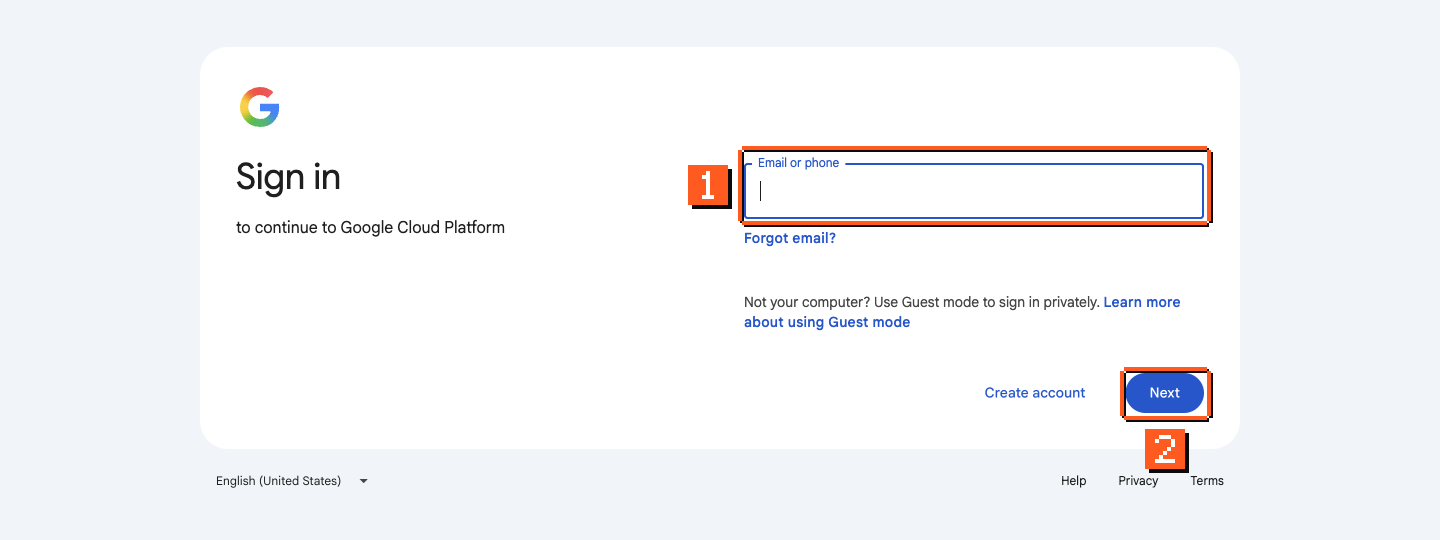
- Enter your Google account email.
- Click Next and finish signing in.
2. Make a project
Section titled “2. Make a project”Open console.cloud.google.com/projectcreate.
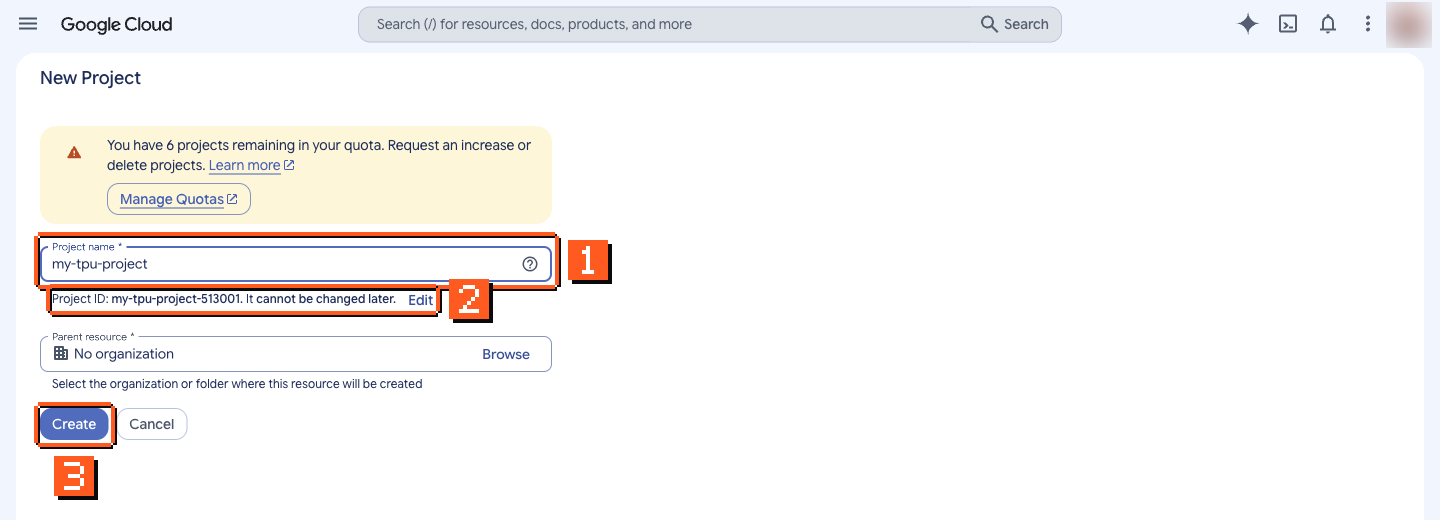
- Type a project name, for example
my-tpu-project. - Google adds a number to make the project ID unique (here
my-tpu-project-513001). Write it down: every command below uses the ID, not the name, and it cannot be changed later. - Leave Parent resource as “No organization” and click Create.
Or from the terminal (pick an ID nobody has used):
gcloud projects create my-tpu-project-12345gcloud config set project my-tpu-project-123453. Turn on billing
Section titled “3. Turn on billing”If your account already has a billing account, the console links a new project to it on its own. Check at console.cloud.google.com/billing/linkedaccount with your project selected.
If it says the project has no billing account:
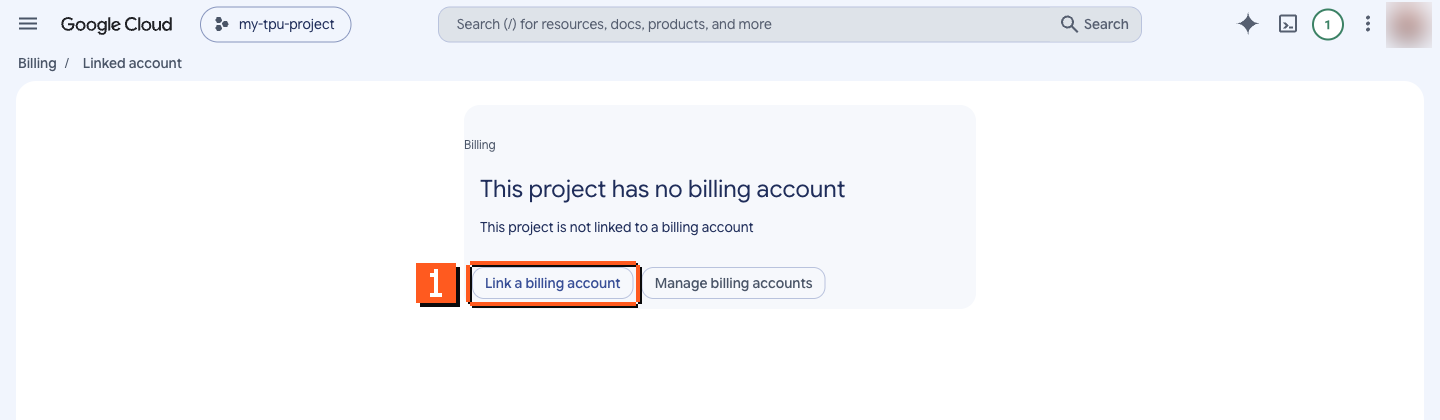
- Click Link a billing account. If you have no billing account, use Manage billing accounts to create one first.
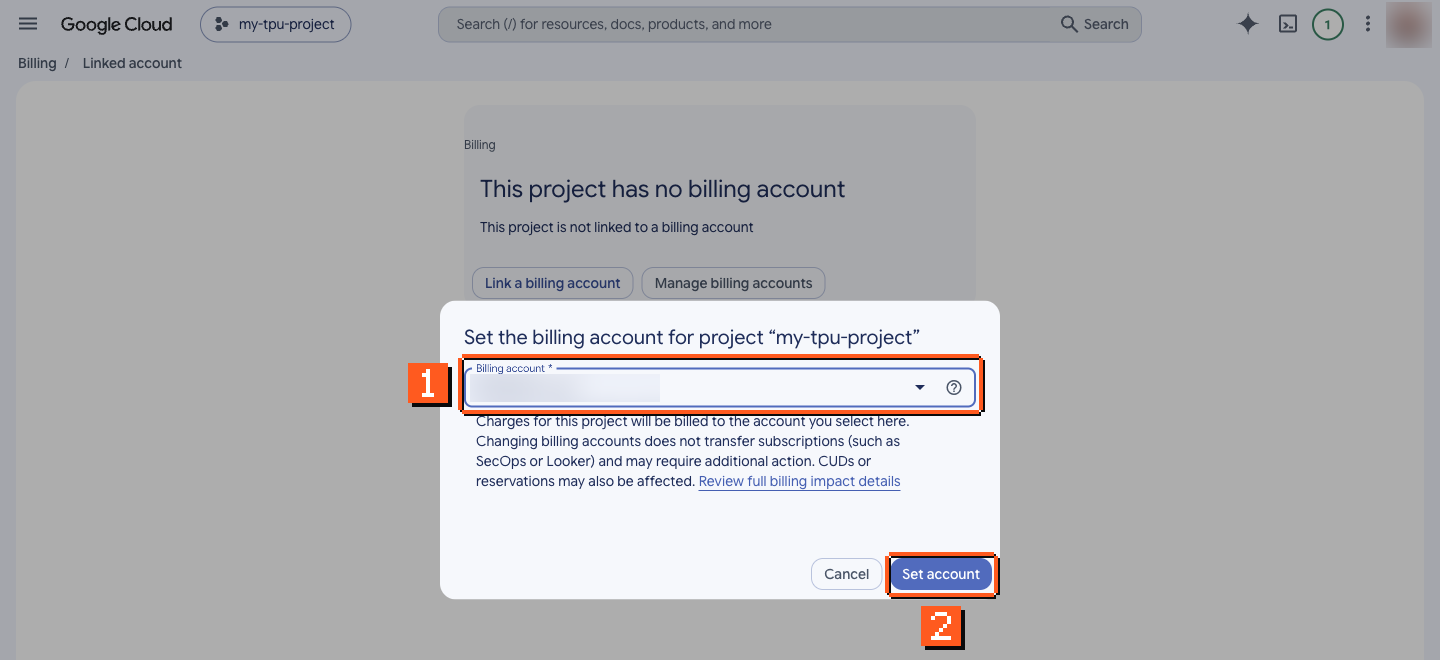
- Pick your billing account.
- Click Set account.
Or from the terminal:
gcloud billing accounts listgcloud billing projects link my-tpu-project-12345 --billing-account=XXXXXX-XXXXXX-XXXXXX4. Turn on the TPU API
Section titled “4. Turn on the TPU API”Open console.cloud.google.com/apis/library/tpu.googleapis.com with your project selected.
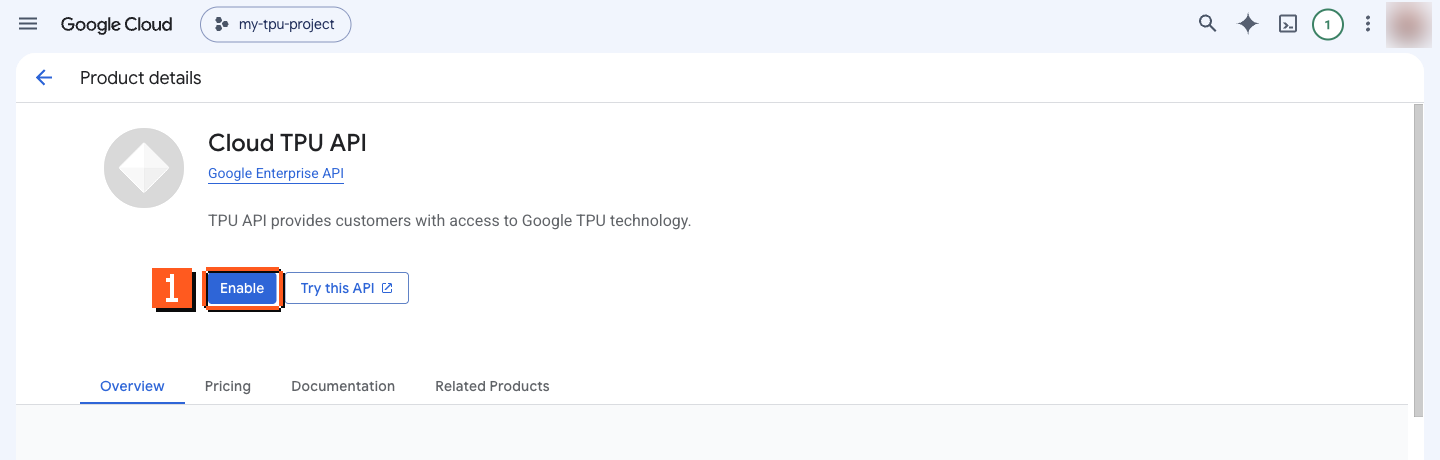
- Click Enable. It takes about a minute.
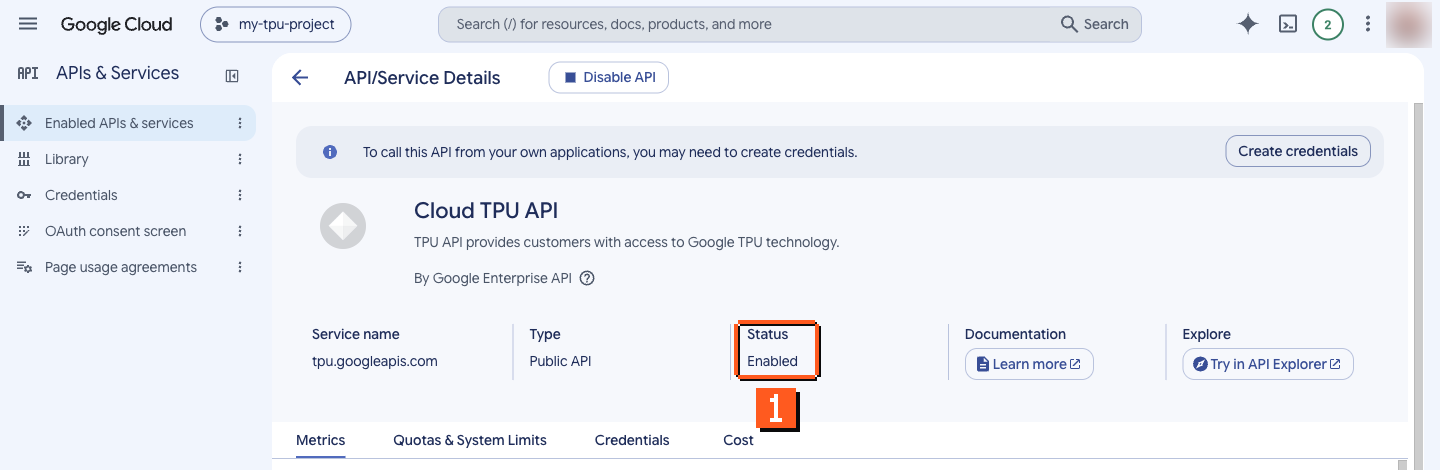
- When it is done, the page shows Status: Enabled.
Or from the terminal:
gcloud services enable tpu.googleapis.com5. Check your TPU quota
Section titled “5. Check your TPU quota”Open console.cloud.google.com/iam-admin/quotas.
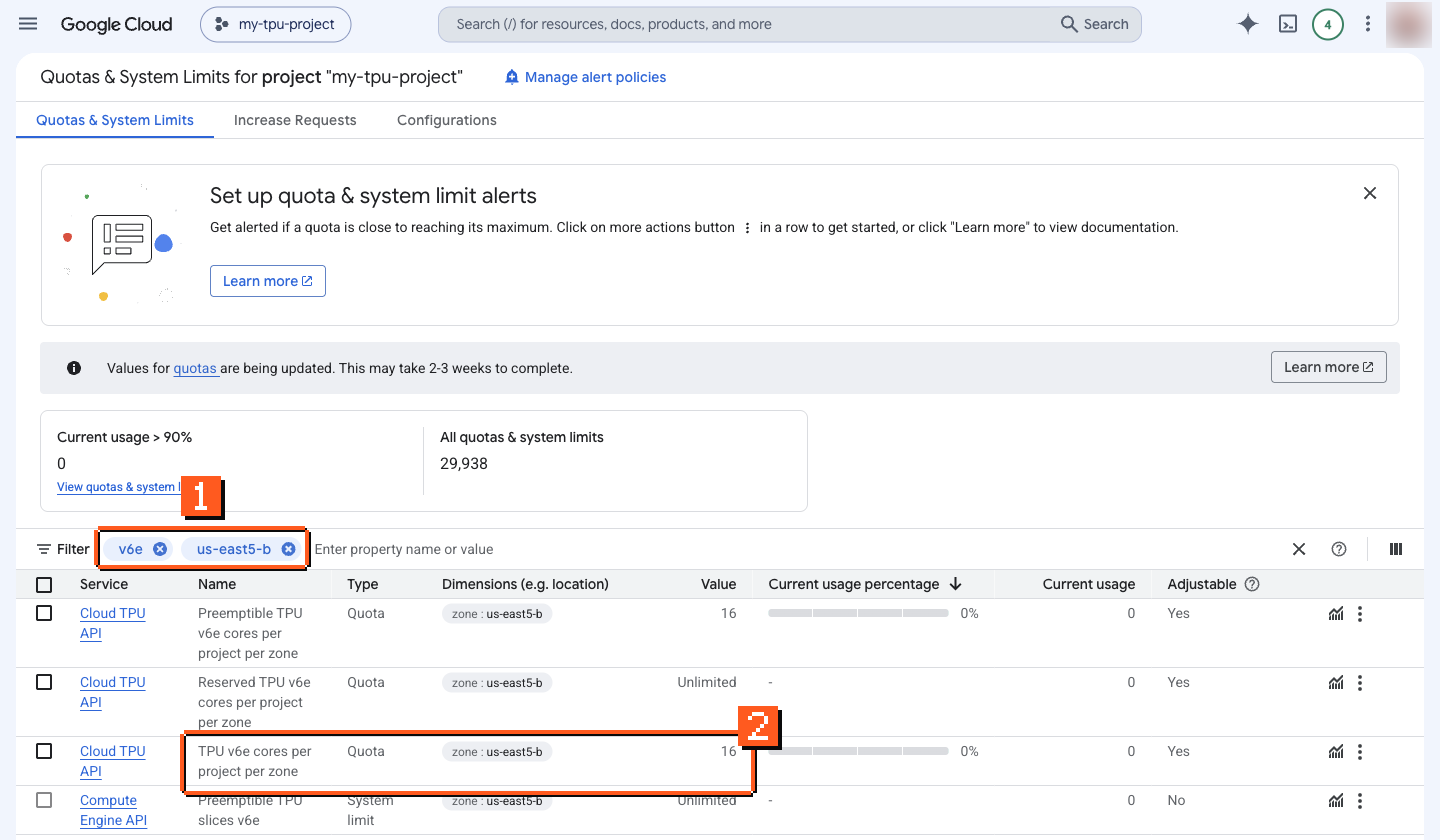
- In Filter, type
v6eand press Enter, then type your zone (for exampleus-east5-b) and press Enter. - The row TPU v6e cores per project per zone is the on-demand quota. One v6e-1 chip needs 1. The “Preemptible” row is for spot chips.
If the value is 0, ask for more:
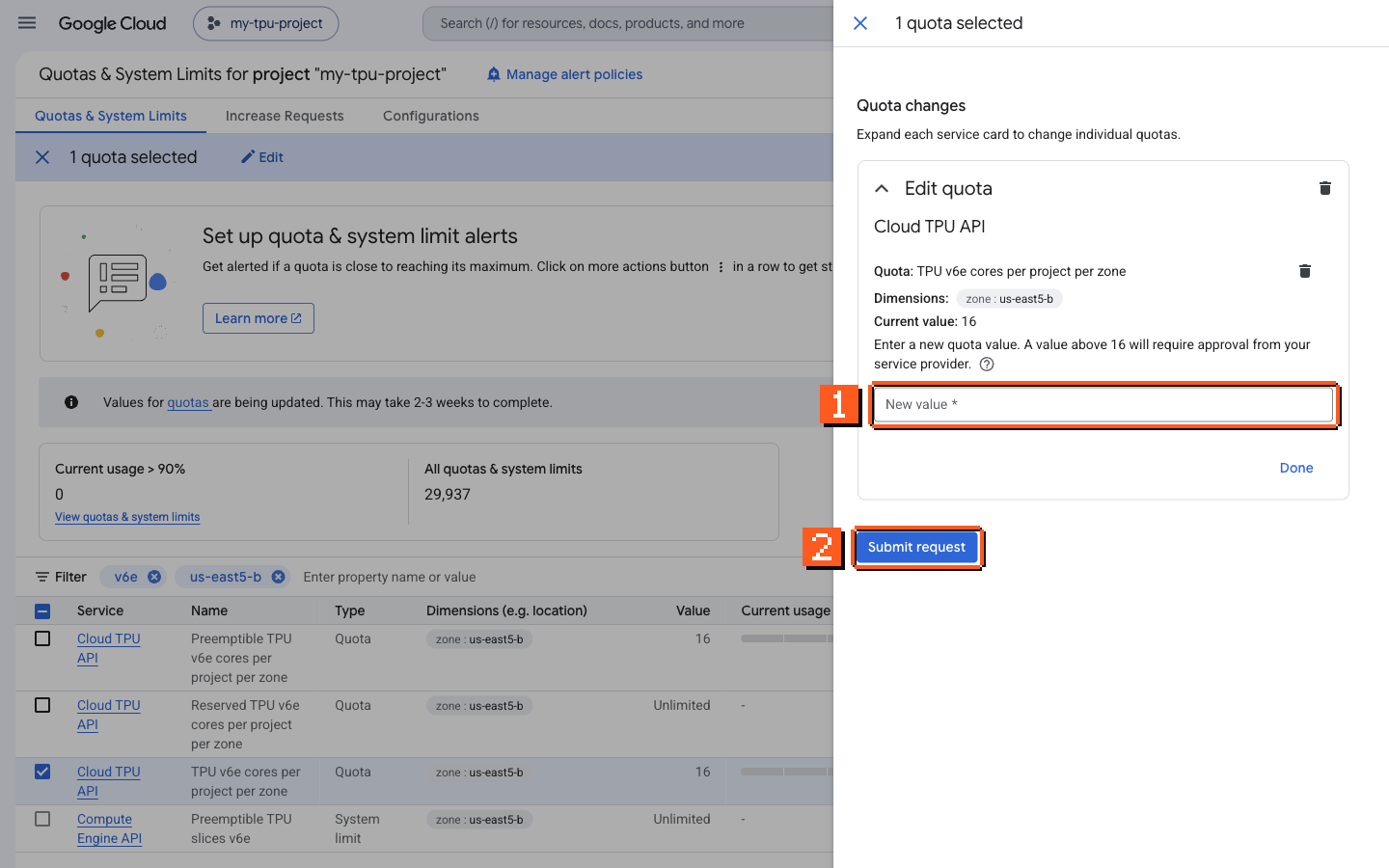
- Click the row’s menu (three dots), then Edit quota, and type the number of chips you need.
- Click Submit request. Google decides; it can take minutes or days.
6. Create one chip
Section titled “6. Create one chip”| Chip | --accelerator-type |
--version |
Zones to try first |
|---|---|---|---|
| TPU v6e | v6e-1 |
v2-alpha-tpuv6e |
us-east5-b, europe-west4-a |
| TPU v6e slice of 4 chips | v6e-4 |
v2-alpha-tpuv6e |
asia-northeast1-b, europe-west4-a, us-east5-b |
| TPU v5e | v5litepod-1 |
v2-alpha-tpuv5-lite |
us-central1-a, us-south1-a, europe-west4-b |
This is not a full list: Google’s TPU regions and zones page lists every zone that offers each chip, and a zone outside the table may need quota first (step 5). When the zones in the table have no capacity, queue a request instead of trying zones one by one.
In the console, open console.cloud.google.com/compute/tpus.
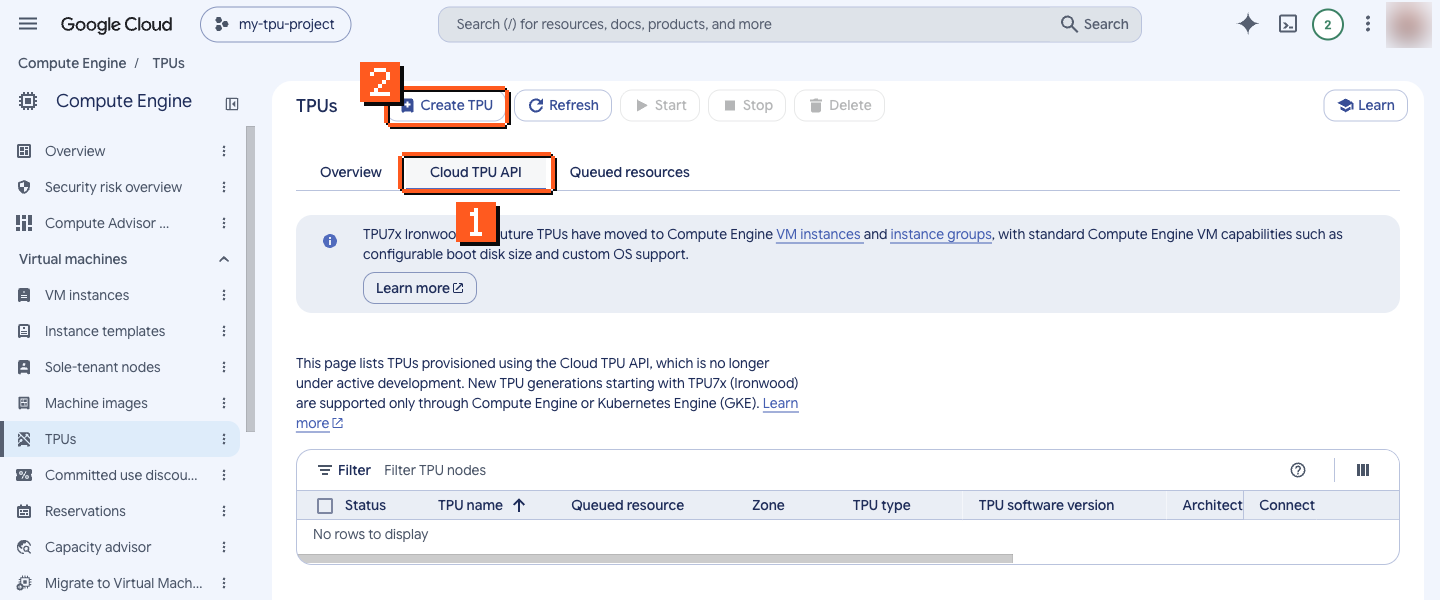
- Click the Cloud TPU API tab. (The VM instance button on the Overview tab opens a different form, for Compute Engine VMs.)
- Click Create TPU.
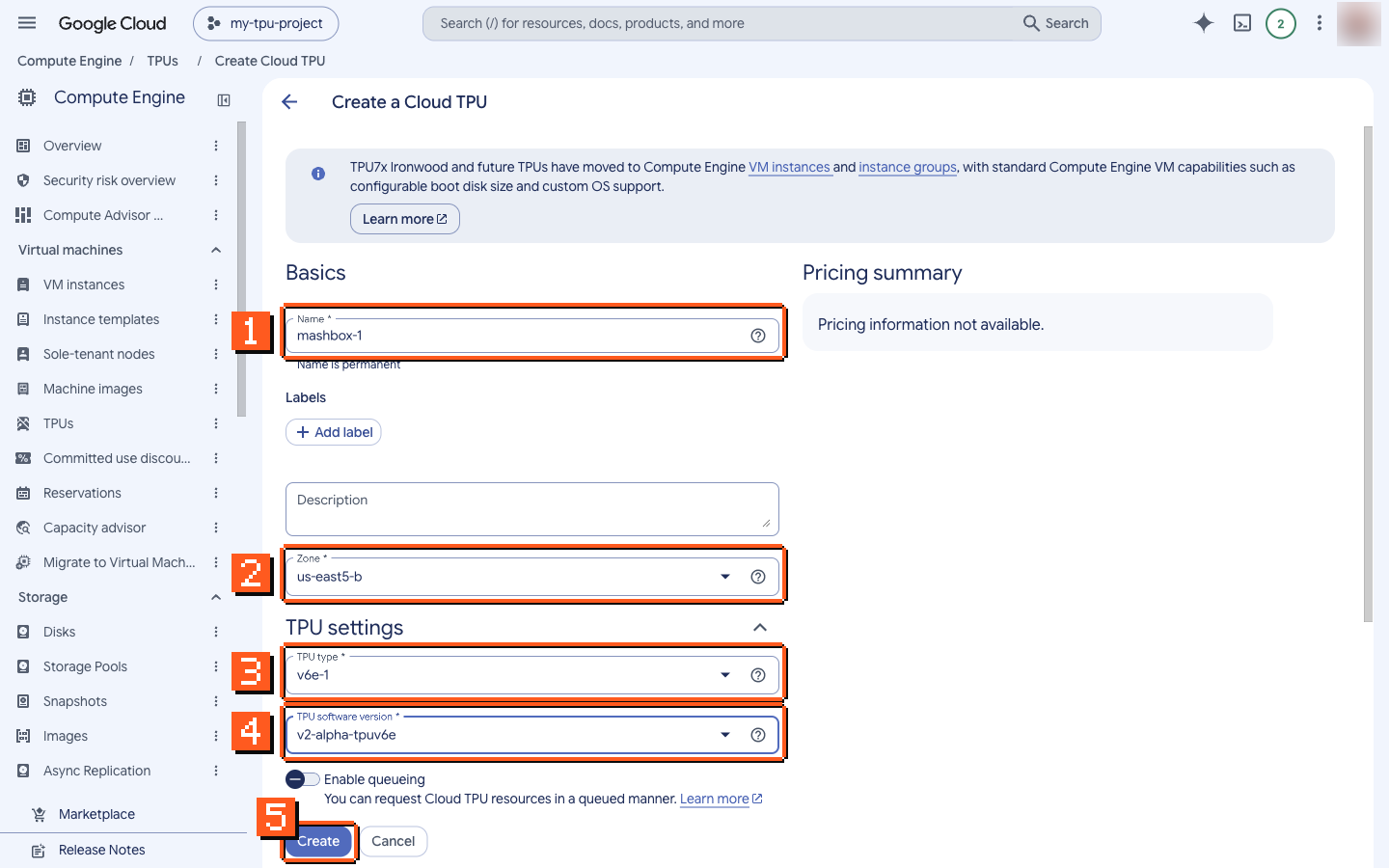
- Name:
mashbox-1. - Zone:
us-east5-b. - TPU type:
v6e-1. - TPU software version:
v2-alpha-tpuv6e. - Leave Enable queueing off and click Create. This makes an on-demand chip, billed from now.
Or from the terminal:
gcloud compute tpus tpu-vm create mashbox-1 \ --zone=us-east5-b --accelerator-type=v6e-1 --version=v2-alpha-tpuv6egcloud compute tpus tpu-vm describe mashbox-1 --zone=us-east5-b --format='value(state)'Wait until the state is READY. A TPU v6e-1 in us-east5-b can take about 9 minutes.
If a zone has no free chips, the create command fails after about 2 minutes with There is no more capacity in the zone. Run it again with the next zone in the table, and use that zone in every command after it.
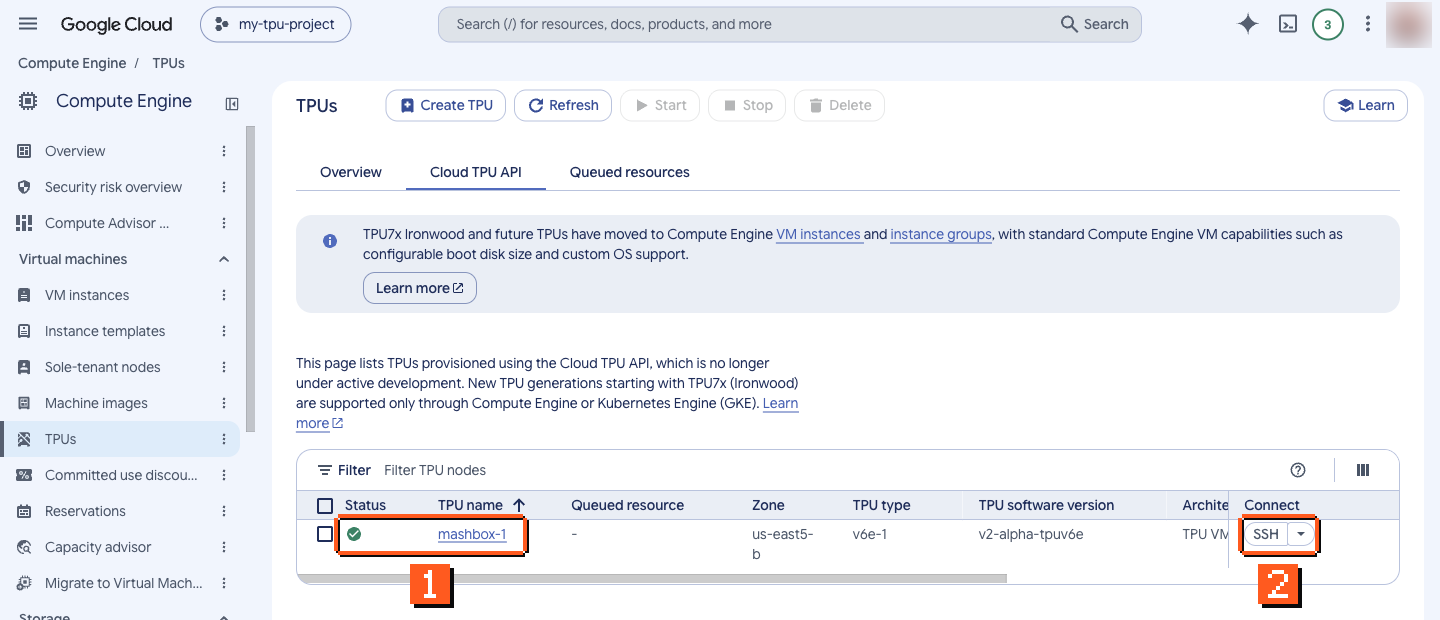
- A green check means the chip is ready.
- SSH opens a shell in your browser (next step).
- Quota error: go back to step 5.
- No capacity: try the next zone in the table, or queue a request (below).
If no zone has a chip: queue a request
Section titled “If no zone has a chip: queue a request”A queued request waits in a zone until Google has a chip, then makes it under the name you give. It costs nothing while it waits; the chip bills from the moment it exists.
gcloud compute tpus queued-resources create mashbox-1-request --node-id=mashbox-1 \ --zone=us-east5-b --accelerator-type=v6e-1 --runtime-version=v2-alpha-tpuv6egcloud compute tpus queued-resources describe mashbox-1-request --zone=us-east5-b --format='value(state.state)'The software version goes in queued-resources create --runtime-version, where tpu-vm create uses --version. Run the describe line until the state is ACTIVE:
| State | What it means |
|---|---|
WAITING_FOR_RESOURCES |
the request waits for a free chip in the zone; nothing bills |
PROVISIONING |
Google is making the chip |
ACTIVE |
the chip mashbox-1 exists and bills: use it like a chip you created, from step 7 on |
A queued TPU v6e-1 request in us-east5-b can take about 9 min 55 s to go ACTIVE with a READY chip. A chip you queued is deleted with its request (step 8).
7. Connect, install and run
Section titled “7. Connect, install and run”From the console, click SSH on the chip’s row. The first time, Google asks you to allow it:
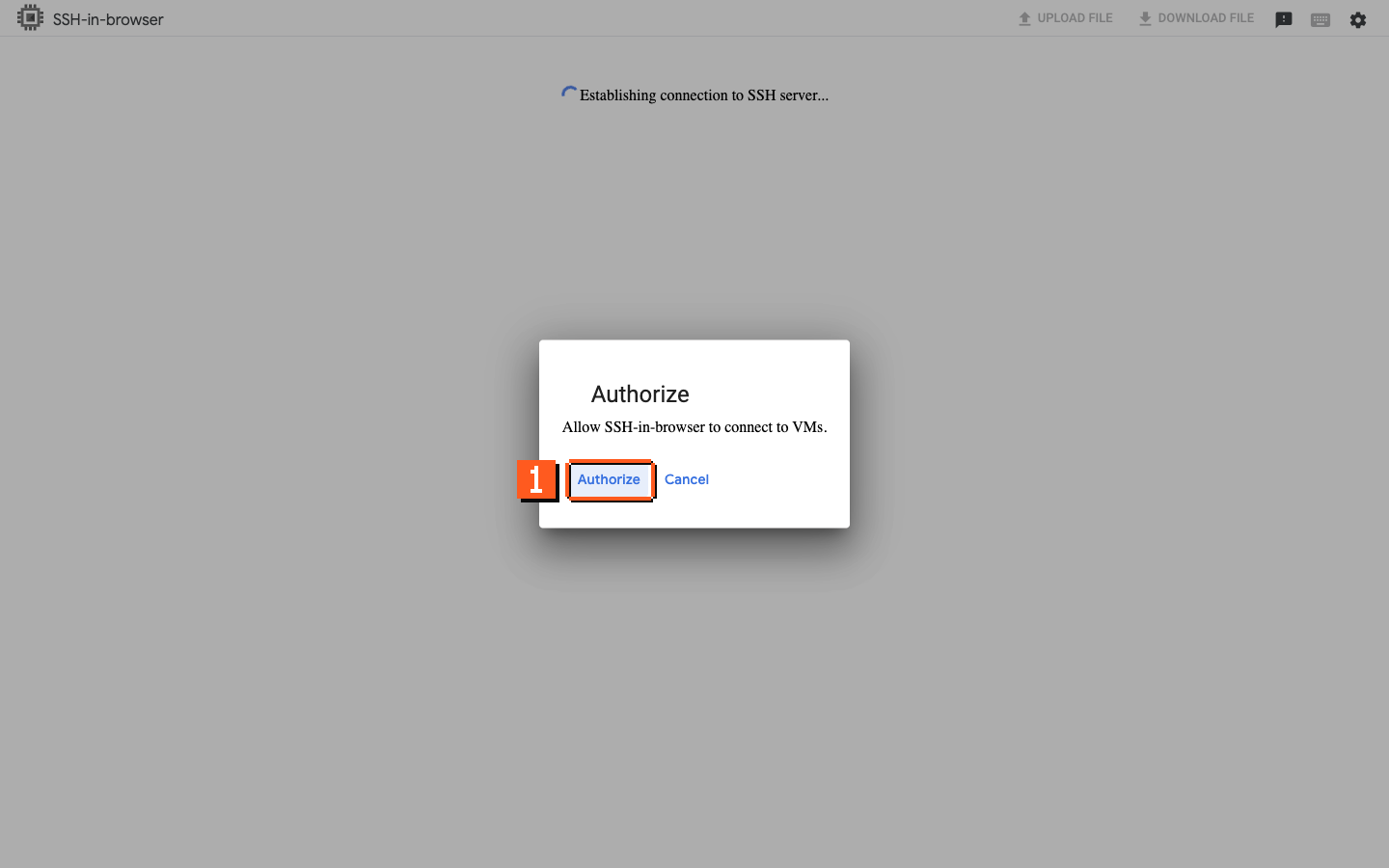
- Click Authorize.
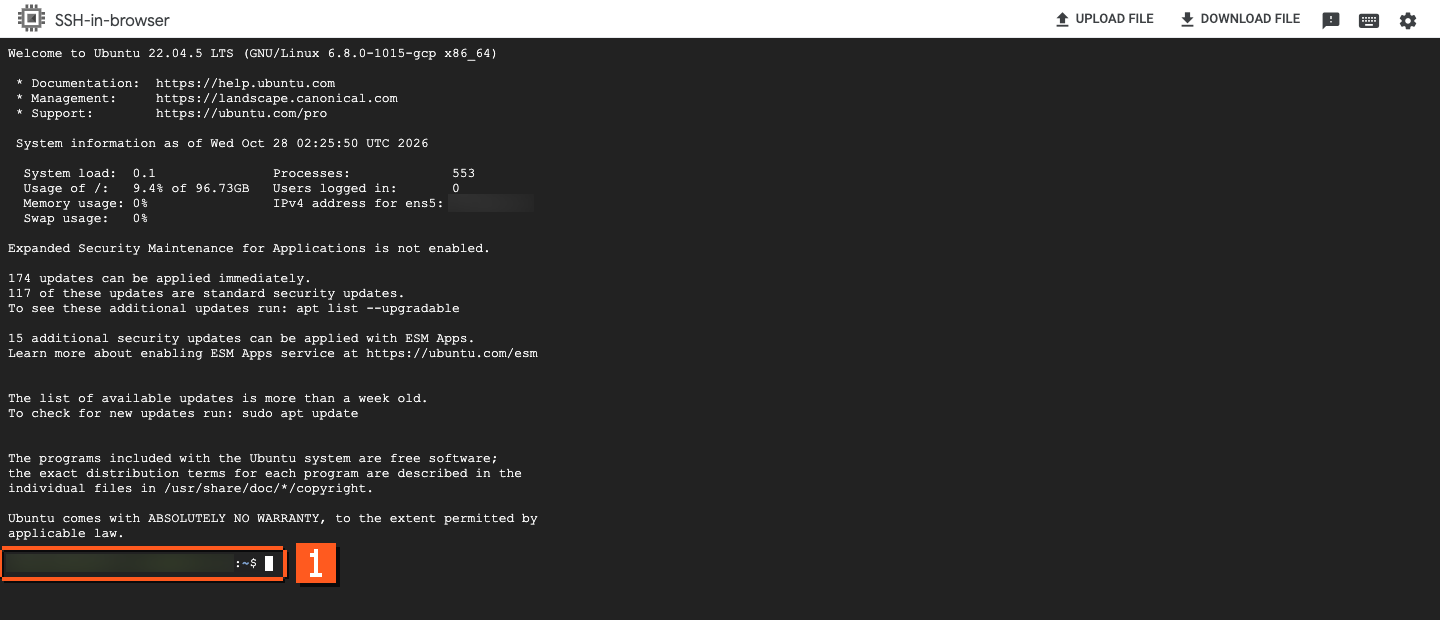
- You now have a shell on the chip’s machine.
From your own terminal, check that the chip shows up:
gcloud compute tpus tpu-vm ssh mashbox-1 --zone=us-east5-b \ --command='python3 -m pip install -q "jax[tpu]" && python3 -c "import jax; print(jax.devices())"'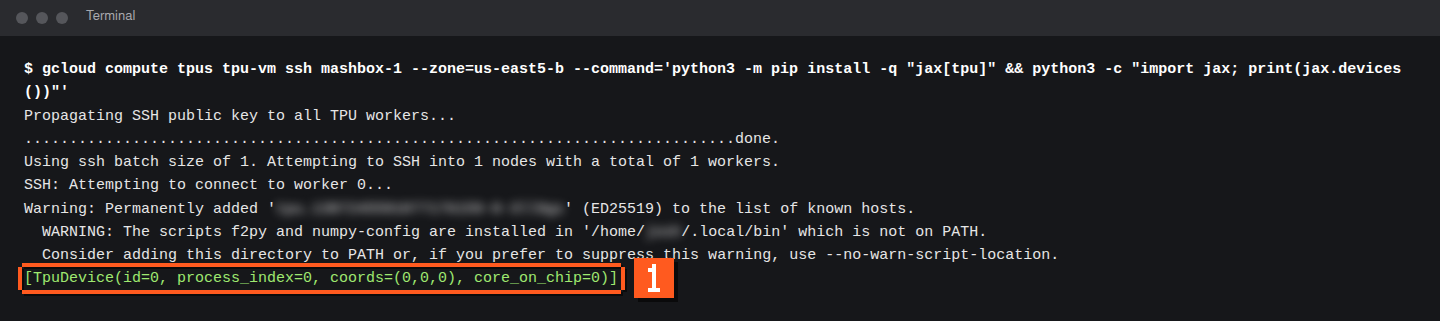
- A
TpuDeviceline means JAX sees the chip. The first SSH also copies your SSH key to the chip (“Propagating SSH public key”).
Install and run a model:
gcloud compute tpus tpu-vm ssh mashbox-1 --zone=us-east5-b \ --command='python3 -m pip install uv && python3 -m uv tool install --python 3.12 "mashbox[tpu]" && ~/.local/bin/mashbox run qwen3-8-27b --prompt "Hello"'The chip’s system Python is 3.10, and JAX for TPU needs Python 3.12. So the command first installs uv with pip, and uv installs mashbox with its own Python 3.12. The mashbox command lands in ~/.local/bin; the commands in these docs use that full path because the folder is not on your PATH until you next log in. pip and uv both print a warning saying so; that is expected. On a new TPU v6e-1 the install takes 5 to 7 s, and the model’s first start downloads the 26.9 GB weights file; with it on disk, a start is ready in 69.6 s.
This runs Qwen3.8-27B, which fits on the one chip from step 6. For another model, swap in its install and run commands from models.json and create the chip type its row lists in step 6. A model that writes files (for example a video) leaves them on the chip; copy them to your machine with gcloud compute tpus tpu-vm scp mashbox-1:<file> . --zone=us-east5-b before step 8.
8. Delete the chip
Section titled “8. Delete the chip”In the console:
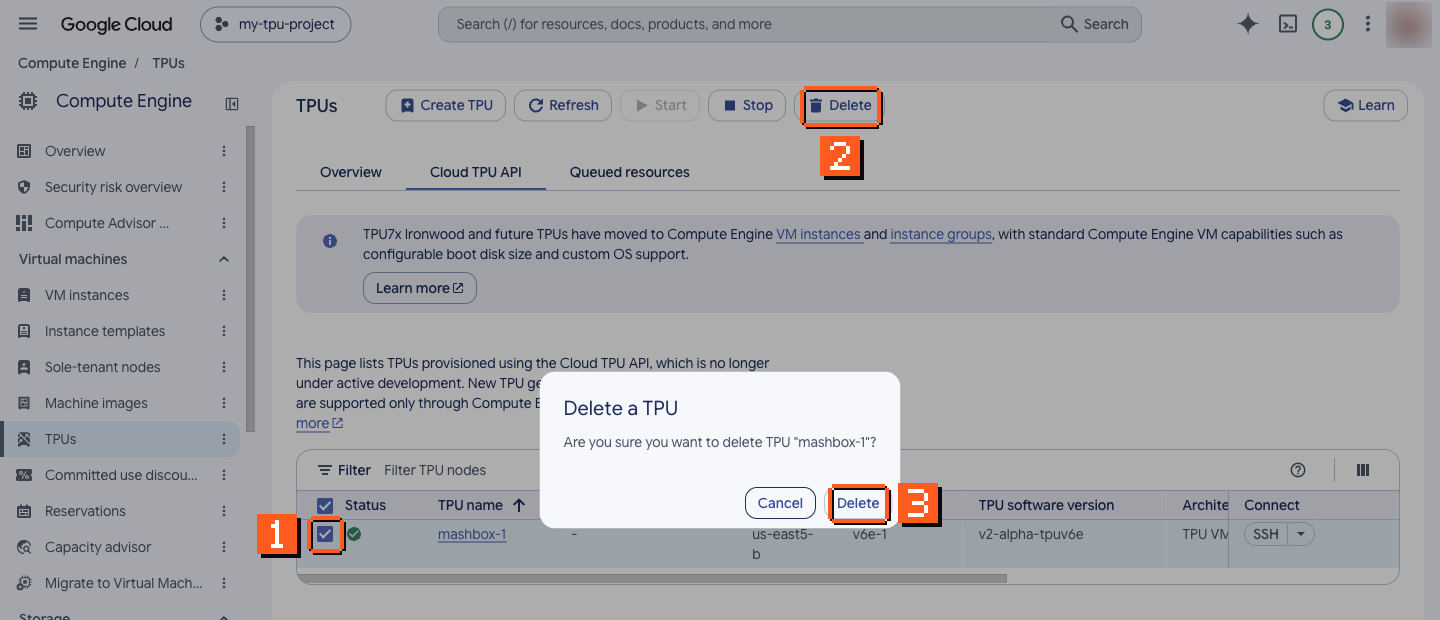
- Tick the chip’s row.
- Click Delete.
- Click Delete again to confirm.
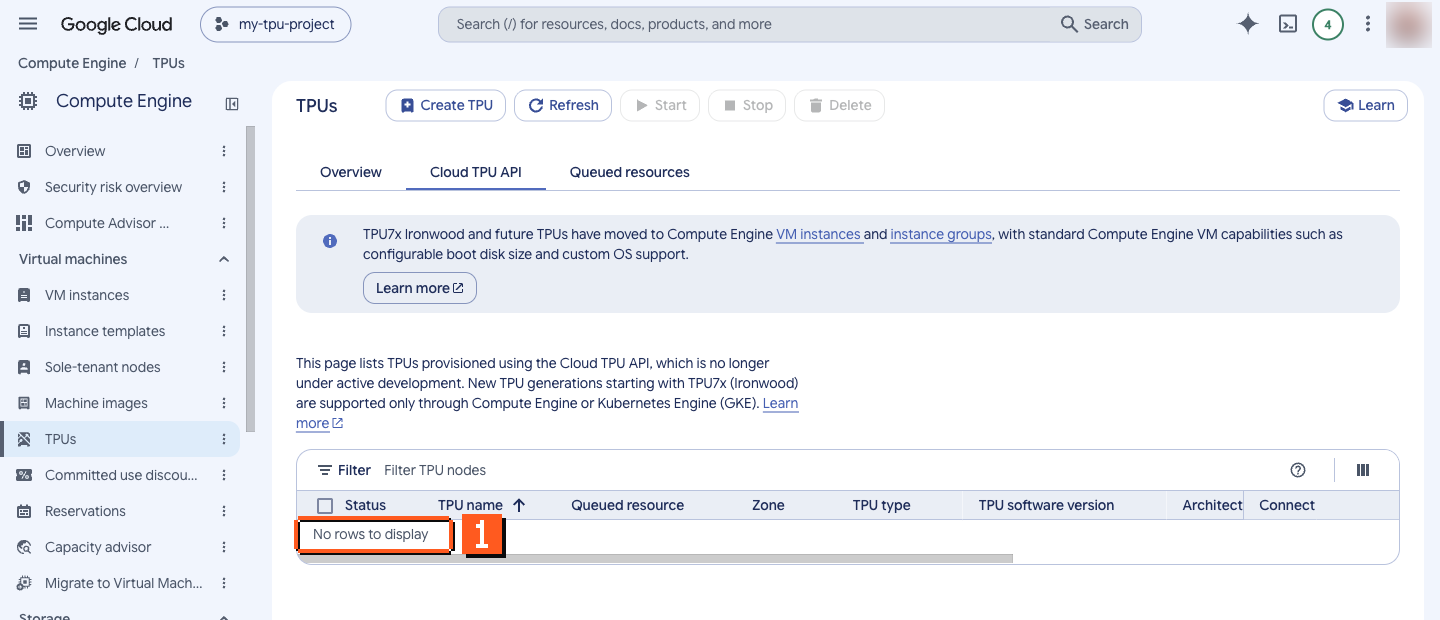
- Deleting a TPU v6e-1 takes about 2.5 minutes. When the list says “No rows to display”, the chip is gone.
Or from the terminal:
gcloud compute tpus tpu-vm delete mashbox-1 --zone=us-east5-b --quietgcloud compute tpus tpu-vm list --zone=us-east5-bThe list must not show mashbox-1. Until it is gone, it bills.
If you made the chip with a queued request, delete the request; queued-resources delete --force deletes the chip with it:
gcloud compute tpus queued-resources delete mashbox-1-request --zone=us-east5-b --force --quietgcloud compute tpus queued-resources list --zone=us-east5-bThe delete can take about 93 s. Both lists (tpu-vm list and queued-resources list) must be empty of your names.
Check it worked
Section titled “Check it worked”Two outputs prove it: the TpuDevice line in step 7, and the chip list without mashbox-1 in step 8.
Clean up
Section titled “Clean up”Step 8 is the clean-up. A chip you forget keeps billing: $64.80 a day for one TPU v6e chip at the list price above. When in doubt, list your chips and queued requests in every zone you used:
gcloud compute tpus tpu-vm list --zone=us-east5-bgcloud compute tpus queued-resources list --zone=us-east5-bTroubleshooting
Section titled “Troubleshooting”| What you see | What to do |
|---|---|
| an error that mentions quota when you create the chip | request TPU quota for that zone (step 5) |
| no capacity in the zone | try the next zone in the step 6 table, or queue a request |
| the TPU API is not enabled | turn it on (step 4) |
| the VM instance button opens a Compute Engine VM form | that is a different product; use the Cloud TPU API tab, then Create TPU (step 6) |
| SSH in the browser asks you to authorize | click Authorize; it asks once (step 7) |
There is no more capacity in the zone "us-east5-b" |
no free chips there right now: create the chip in the next zone of the step 6 table and use that zone in every later command, or queue a request |
User does not have permission to submit requests for accelerator type "v6e-1" in location ... |
your project has no on-demand quota for that chip in that zone: pick a zone from the step 6 table, or ask for quota there (step 5) |
ERROR: No matching distribution found for jax[tpu]==0.11.2 |
plain pip install "mashbox[tpu]" ran on the chip’s Python 3.10; use the install line from step 7, which gets Python 3.12 through uv |
mashbox: command not found |
use the full path ~/.local/bin/mashbox, or log in again so ~/.local/bin is on your PATH |
429 Too Many Requests from cdn.hf.co during the download |
Hugging Face’s Xet transfer is limiting the download: run the command again. mashbox downloads over plain HTTPS unless HF_HUB_DISABLE_XET=0 is set |
The TPU is already in use by another process |
one process at a time can use the chip: stop the other one (for example a server in another SSH session) and run again |
<model> is not in mashbox <version> |
that model is not in the installed version: pick one from the Models pages |
- Use with coding agents: Claude Code, Codex and Pi on the model you serve.
- Qwen3.8-27B on TPU: serve it with an OpenAI-compatible API.
- TPU v6e and v5e: which chip to pick.